
How to use X Wallets on Solz.app for bundles and trading
What is an X Wallet on Solz.app?
An X Wallet is a Solana wallet that Solz.app creates and keeps in your browser, with no app or extension needed. You can have up to 100. Use one to sign in place of a wallet app, or use several to bundle buys, trade together, collect tokens and reclaim rent.
Each X Wallet is a normal Solana wallet with its own address and private key. It can hold SOL and tokens, and you can import its key into another wallet app. Creating one is free, and it doesn't touch the blockchain until you use it.
Prerequisites
- A browser you use regularly and keep secure, because the keys stay in that browser.
- SOL to fund the wallets, from a wallet app or an exchange.
- A safe place outside the browser to keep a backup of your keys.
Steps to set up X Wallets
These steps create 5 wallets, back them up and fund each one with 0.5 SOL.
- Open the tool. Go to Manage X Wallets. You don't need to connect a wallet to create them.
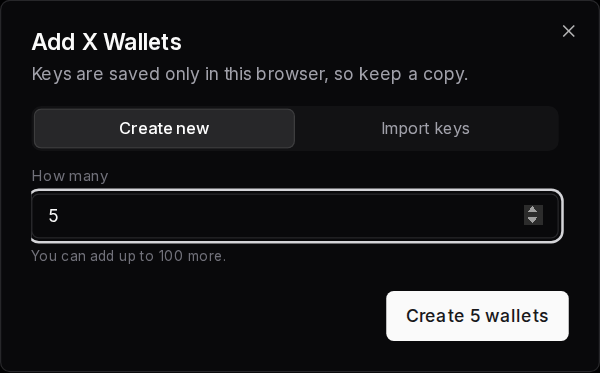
- Create your wallets. Click Add wallets, stay on Create new, enter 5 under How many and click Create 5 wallets.
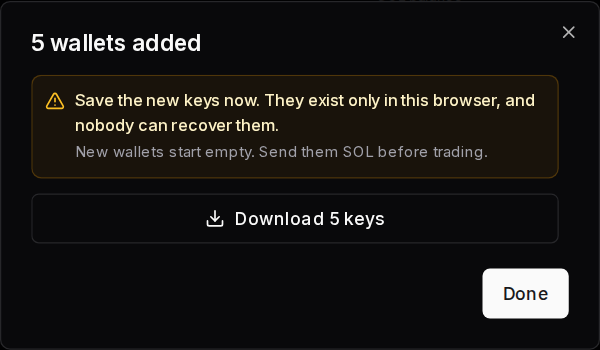
- Back up your keys now. Click Download 5 keys, move the file somewhere safe, then click Done. Download addresses on the page saves only the addresses, which is safe to share.
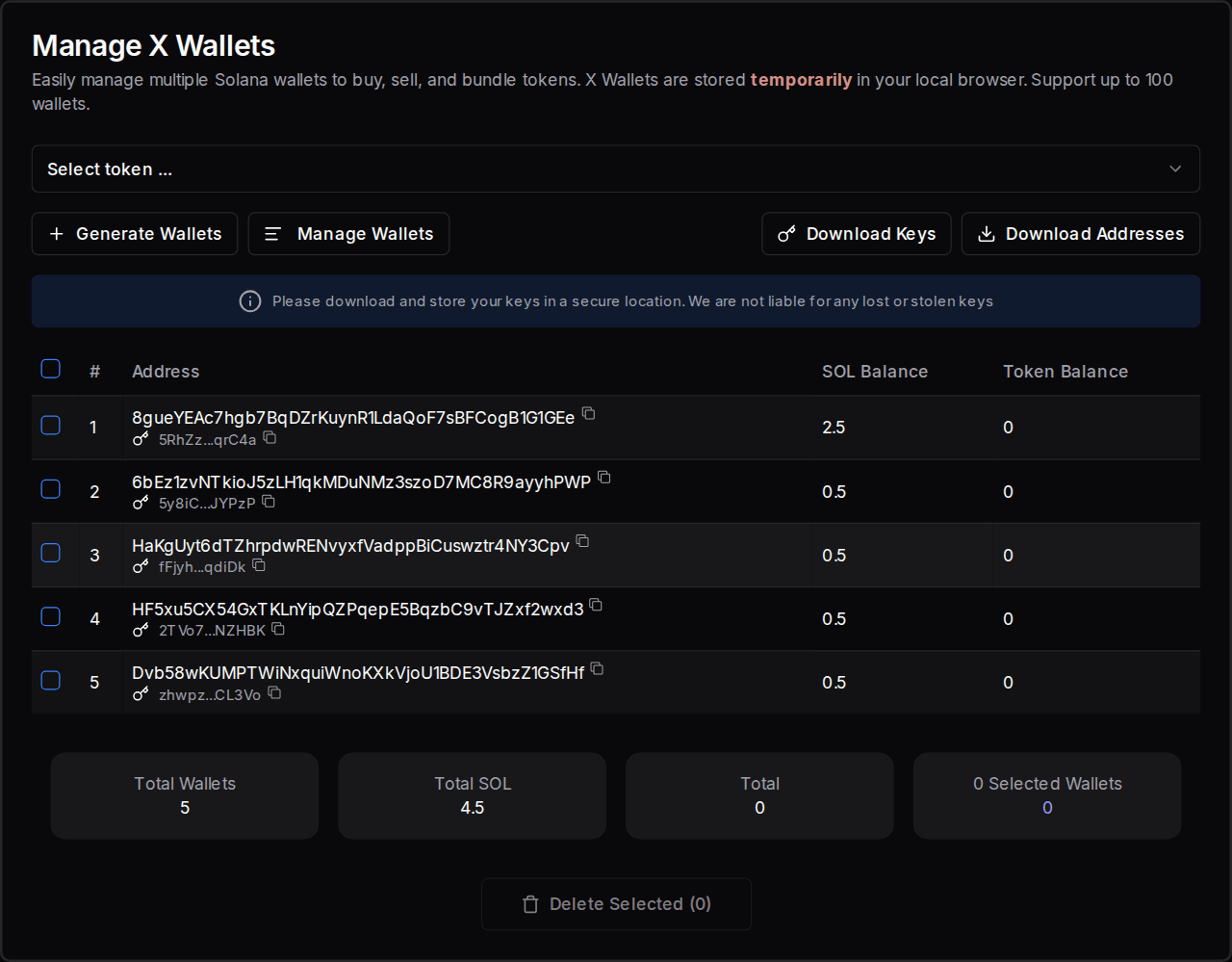
- Check the list. Each row shows the wallet's number, address and SOL balance, with buttons to copy the address or the private key. Select a token at the top to see each wallet's balance of it. To change the order, hold a wallet and drag it. Other pages list wallets in this order.
- Connect a funded wallet. Connect the wallet that holds your SOL.
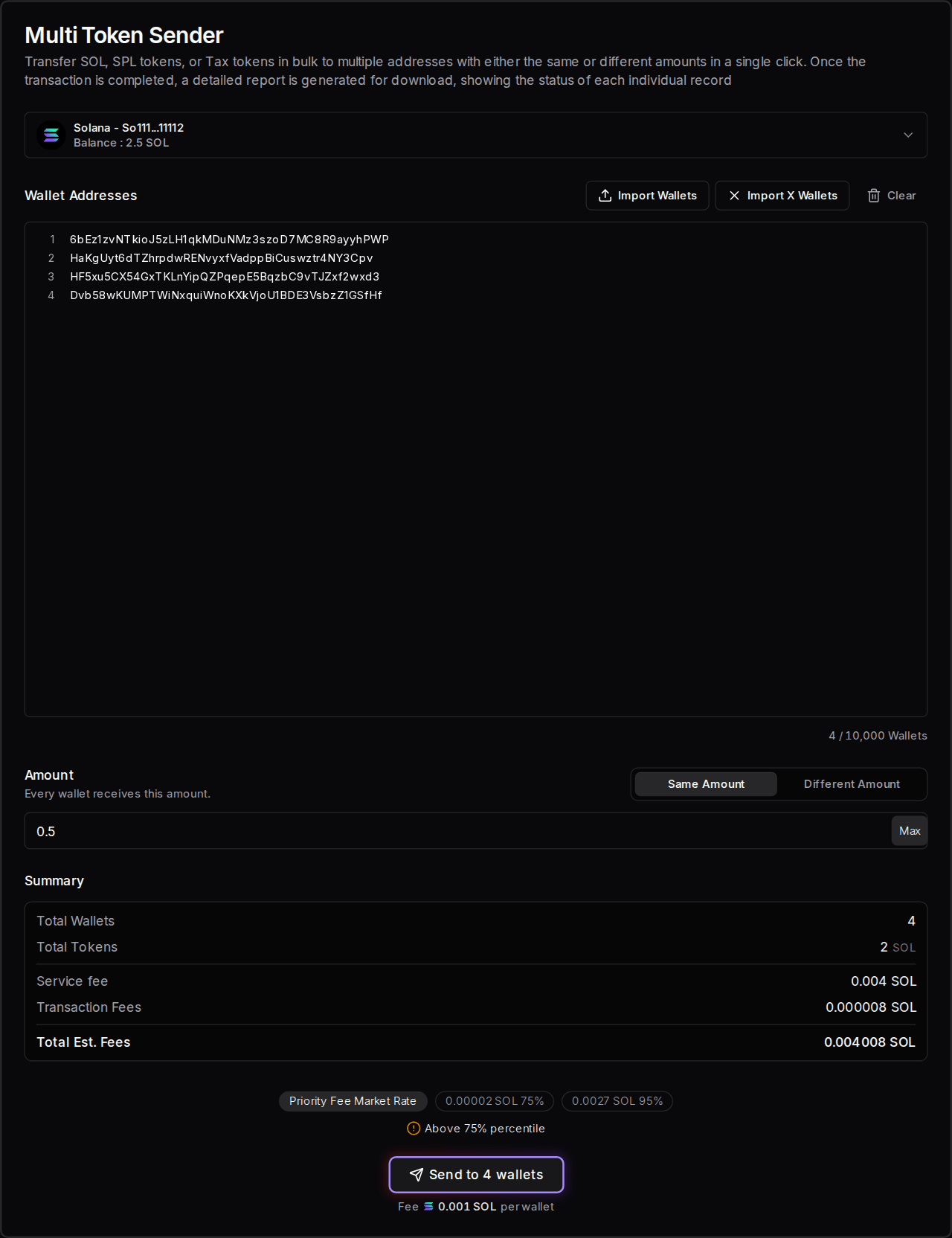
- Fund the wallets. Open Multi Token Sender and select Solana. Click Import X Wallets, remove any wallet you don't want to fund, enter an amount and click Send to.
How do I add wallets I already have?
Click Add wallets, then Import keys. Paste the private keys one per line, or click Upload file to load a .txt or .csv file, then click Import. Only base58 keys work, which is the format wallet apps usually export. Importing only adds wallets, so it never replaces the ones you have, and any you've already added are skipped.
How do I remove a wallet?
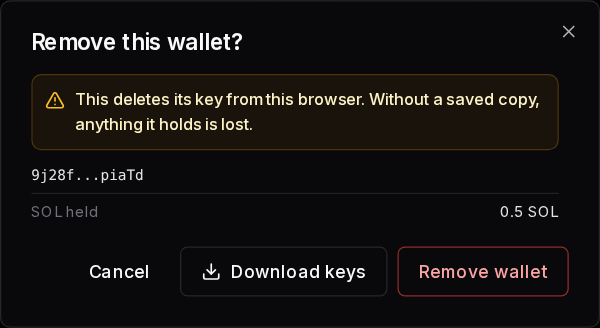
Click the bin on its row, or tick several wallets and click Remove. Solz.app asks first, shows the SOL each wallet holds, and offers Download keys. Removing deletes the key from this browser, so download it first if the wallet holds anything. You can't remove the wallet you're connected with until you disconnect it.
Should I use an X Wallet or a wallet app?
Use a wallet app such as Phantom for your main funds, because its keys stay protected in the app. Use X Wallets when you need many wallets working together, or a quick wallet for one job. You can use both: a wallet app holds your funds, and X Wallets do the bundling.
| X Wallet | Wallet app | |
|---|---|---|
| Setup | Built in, nothing to install | Install an app or extension |
| How many | Up to 100, created in one click | Usually added one at a time |
| Where the keys are | This browser only | The app or a hardware device |
| Works in other apps and sites | Only after importing its key elsewhere | Yes |
| Best for | Bundles, bundled trades, small working balances | Long-term holdings and your main funds |
How do I sign with an X Wallet?
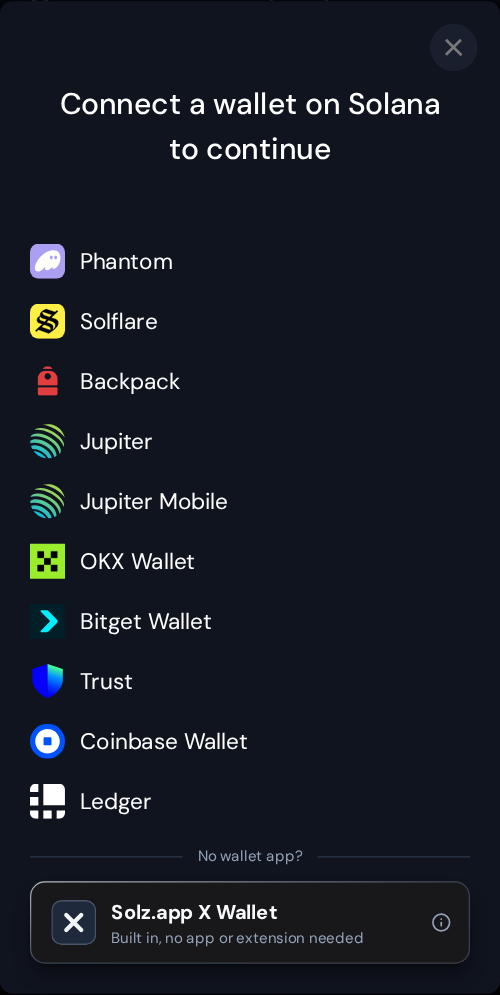
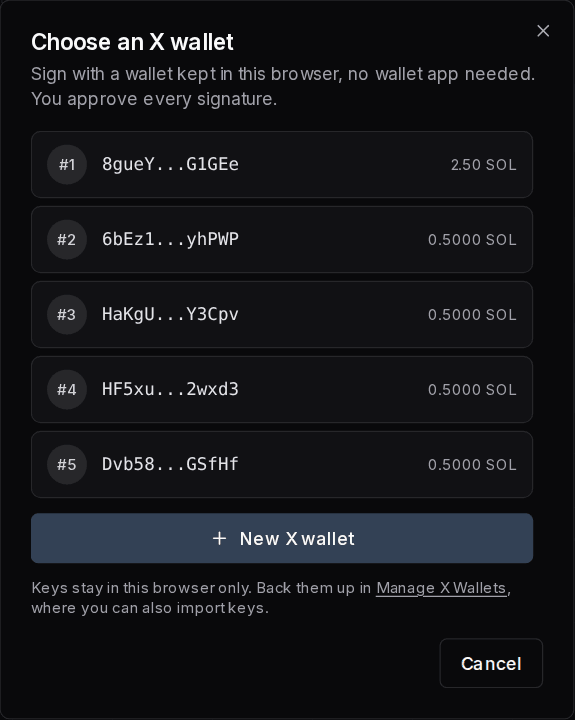
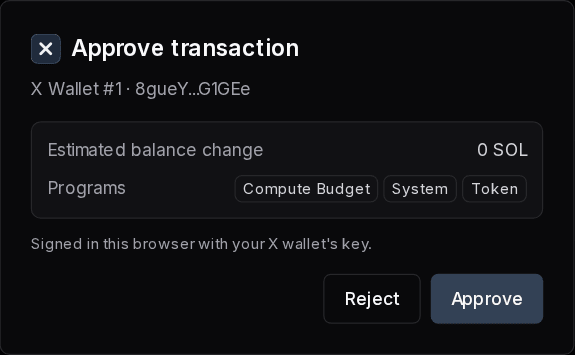
Click Connect Wallet, then choose Solz.app X Wallet under No wallet app?, and pick a wallet from your list. It then works like a wallet app across Solz.app: most tools open an approval window for each transaction, and nothing is signed until you click Approve.
The approval window shows the wallet signing, the estimated change to your SOL balance, and the programs the transaction uses. Here, X Wallet #1 is closing its empty Pnut account in the SOL Incinerator, so its balance goes up. Click Reject to stop, and nothing is signed or sent.
To change wallet, open the wallet menu at the top right and click Switch X wallet. Multi Token Sender asks once for a whole send. Bundled Buy, Bundled Sell, Collect Tokens and the batch SOL Incinerator don't open this window, because clicking their button is your approval.
What can I do with X Wallets on Solz.app?
You can buy together at your launch, trade from many wallets together, move tokens back to one wallet, and reclaim rent across all of them. Every tool below reads the same list of X Wallets, so you only set them up once, and each row in a tool is one wallet.
| What you want to do | Tool | Guide |
|---|---|---|
| Buy with several wallets at launch | Buy Bundle in the launch forms | Pump.fun, LaunchLab |
| Buy with several wallets when a pool opens | Buy Bundle in Create Liquidity Pool | Raydium pools |
| Buy or sell together after launch | Bundled Buy, Bundled Sell | Below |
| Move tokens to one wallet | Collect Tokens | Below |
| Reclaim SOL across wallets | Batch SOL Incinerator | Below, and reclaiming SOL |
| Send SOL or tokens to your wallets | Multi Token Sender | Send to many wallets |
Bundled Buy, Bundled Sell, Create Liquidity Pool and the launch forms have their own Add wallets button and a bin on each row, so you can add or remove X Wallets without leaving the form.
Example: a bundled buy
Say 4 wallets each buy 0.1 SOL of Peanut the Squirrel (Pnut). Select the token, and Solz.app picks a route and its largest pool, which you can change. Pnut's main pool was on Raydium AMM, so that's the route here. Enter 0.1 under Buy amount for wallets 1 to 4, and leave wallet 5 empty to skip it. Fixed sets the same amount for every wallet, Max and Half fill each from its balance, and Clear empties them all.
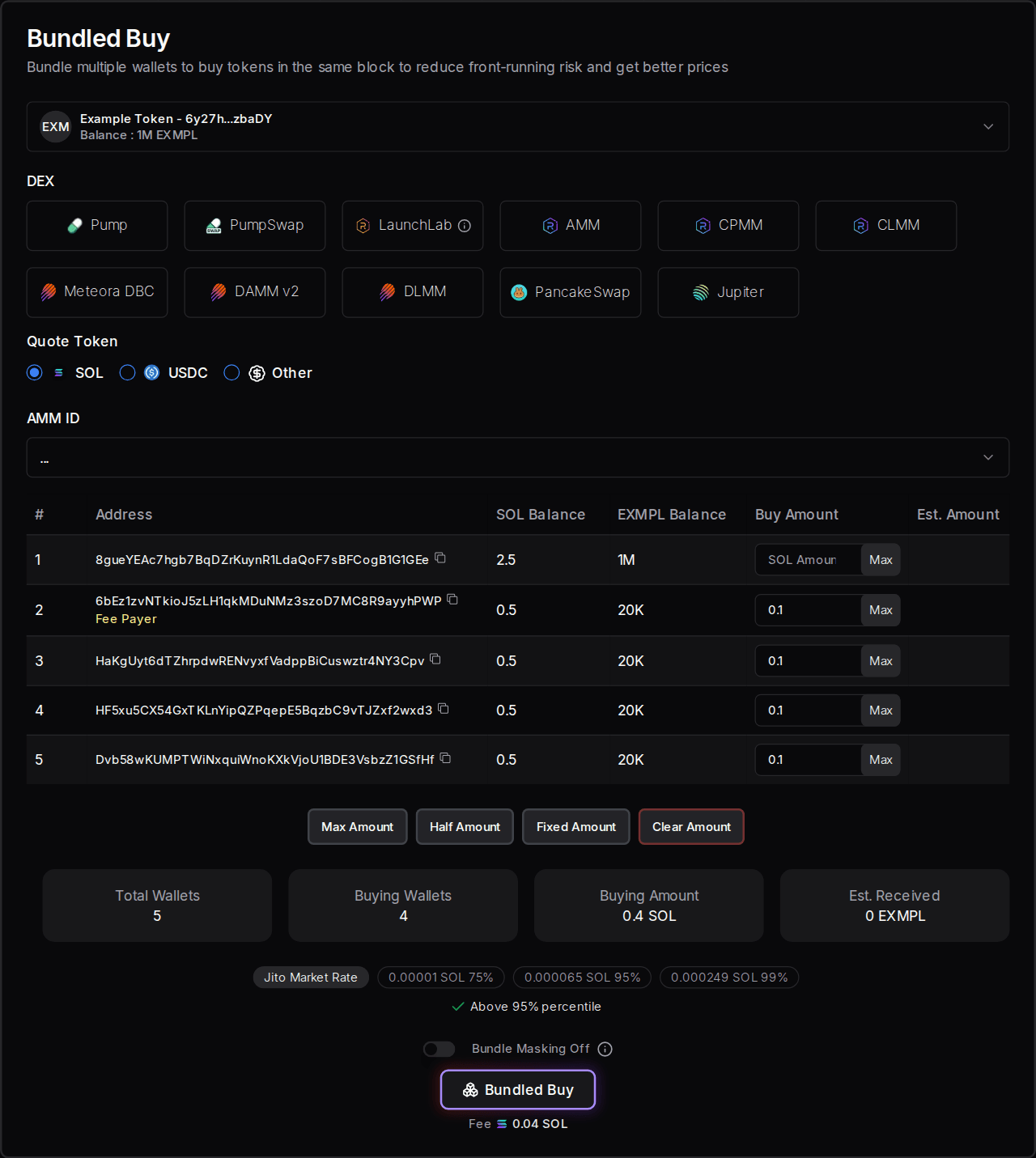
Each wallet shows its estimate, about 256 Pnut at the pool's price. Under Fees paid by, First trading wallet means the first wallet with an amount pays the Solz fee and the Jito tip, and is marked Fee payer, so keep enough SOL in it. Each other wallet still pays its own network fee. You can pick any other wallet instead. On this route, the Solz.app fee is 0.012 SOL per wallet, so 0.048 SOL for 4. Then click Send bundled buy. When it works, Solz.app says Buy complete.
Jito bundle is the default: all wallets land in the same block, or none do. Choose No bundle to send separate transactions instead. They're harder to spot, but some can fail and each wallet may get a different price. The button then says Buy, and the fee payer pays only the Solz fee. Each wallet needs enough SOL for its own buy.
Example: collecting tokens
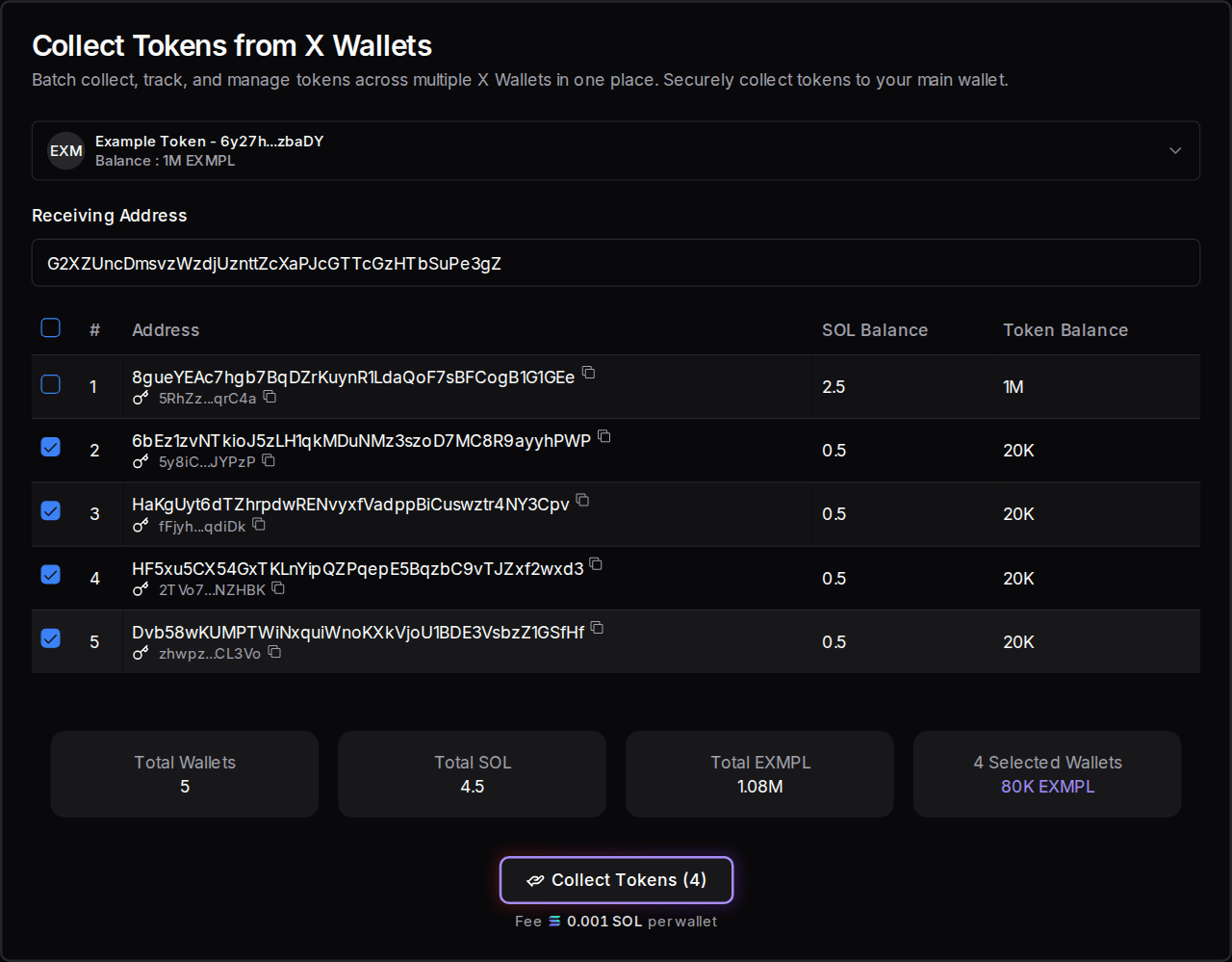
After a launch, your tokens sit in separate wallets. To bring the Pnut from 4 wallets into one, open Collect Tokens, select the token and check the Receiving address, which starts as your connected wallet. Tick the 4 wallets and click Collect tokens. Here that moves about 1,025 Pnut for a fee of 0.004 SOL, and Solz.app says Successfully collected 4 wallets. If a token has a transfer fee, the receiving wallet gets that much less than the amount collected, and the page says so. To collect leftover SOL, select Solana as the token.
Example: reclaiming rent
Once those wallets are empty, each one still holds about 0.0015 SOL as rent for its Pnut account. Open the batch SOL Incinerator, check the Receiving address, keep Empty accounts selected, tick the wallets and click Claim empty accounts. Here that returns 0.005954 SOL for a fee of 0.00008 SOL, and Solz.app says Successfully collected rent from 4 wallets.
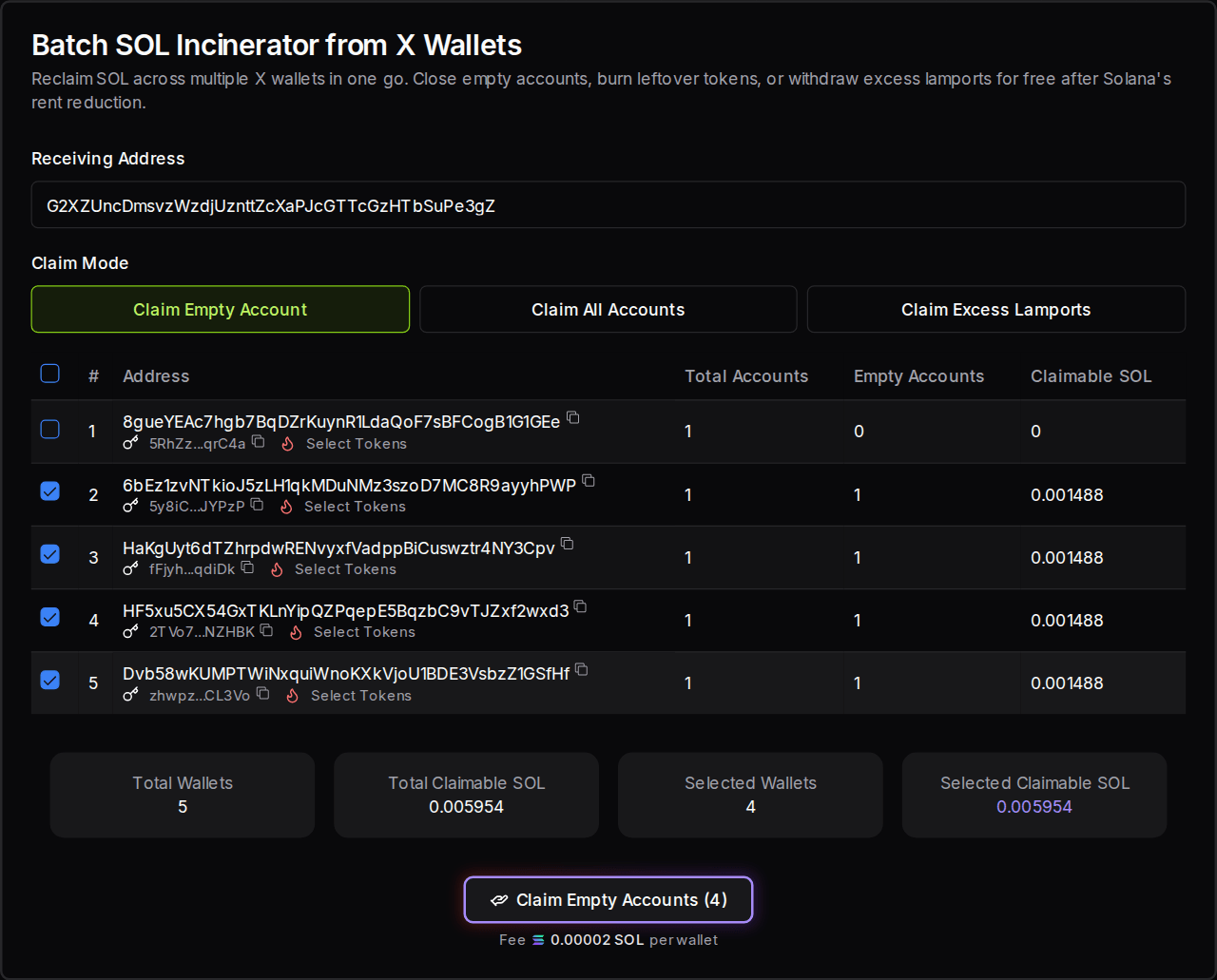
| Claim mode | What it does |
|---|---|
| Empty accounts | Closes accounts with no tokens in them |
| All accounts | Burns every token in the selected wallets, then closes their accounts. Only use it when nothing in them has value |
| Excess lamports | Withdraws extra rent left after Solana's rent reduction, for free, and keeps the accounts open |
How do I keep my X Wallets safe?
Download your keys as soon as you create wallets, store that file somewhere safe outside the browser, and keep only what you need in these wallets. Anyone with a private key controls that wallet for good, and Solz.app can't recover or reverse anything if a key is lost or stolen.
- Keys stay in this browser only. They aren't on other browsers or devices, and clearing this browser's site data removes them. To use them elsewhere, import your backup.
- Never share your keys file. The Download keys file holds every private key. Never paste a key into a chat or send it to anyone, including someone claiming to be from Solz.app.
- Back up before you remove a wallet. Removing deletes its key from this browser. The funds stay on-chain, but you can't reach them without a backup.
- Keep your main funds elsewhere. Move profits to a wallet app or hardware wallet with Collect Tokens.
- Keep your device secure. Use a browser and computer you trust, and be careful with browser extensions and shared computers.
What should I see if something goes wrong?
Solz.app stops before anything is signed when a wallet list or balance has a problem, and says what to fix. A red message about SOL means a wallet can't cover its costs, so add SOL or reduce the amount. Rejecting an approval window signs nothing, so you can try again.
| What you see | What it means | What to do |
|---|---|---|
| No wallets yet. Create some in Manage X Wallets. | This browser has no X Wallets | Add wallets, or import your backup |
| You have the maximum of 100 wallets. Remove some to add more. | Your list is full | Remove wallets you no longer need, after downloading their keys |
| You can add 3 more, but this is 5., with your numbers | You're adding more than the room left | Add fewer, or remove some first |
| Invalid key, with Fix the invalid key to import. | A line isn't a base58 private key | Fix that line, or click Auto fix to remove invalid lines |
| You're connected with this wallet. Disconnect it before removing it. | You tried to remove the wallet you're signed in with | Disconnect, then remove it |
| Select token ! | No token is selected | Select one at the top of the form |
| Not enough balance, you need at least the amount shown | A wallet can't cover the fee and network costs | Add SOL, or reduce the amount |
| Simulation failed. The transaction may fail. | The approval window expects it to fail | Click Reject, then check your balances and amounts |
| Transaction timeout ! This might be due to you sending invalid transactions / congested network | It didn't confirm in time | Check the wallet's history before trying again, because it may have gone through. Then raise your priority fee |
How much do X Wallets cost on Solz.app?
Creating, importing and backing up X Wallets is free. You pay when you use them on-chain: for example, 0.0005 SOL per wallet to send, 0.001 SOL per wallet to collect, and from 0.01 SOL per wallet for a bundled buy. Network fees come on top, and each wallet needs SOL for its own transactions.
| Item | Cost |
|---|---|
| Create, import or download wallets | Free |
| Fund wallets with Multi Token Sender | 0.0005 SOL per wallet |
| Buy Bundle at launch or when a pool opens | 0.01 SOL per wallet |
| Bundled Buy | From 0.01 SOL per wallet |
| Bundled Sell | From 0.005 SOL per wallet |
| Collect Tokens page | 0.001 SOL per wallet |
| Collect Tokens option in a pool form | 0.01 SOL per wallet |
| Batch SOL Incinerator | 0.00002 SOL per wallet, and free for Claim Excess Lamports |
FAQ
Are X Wallets real Solana wallets?
Yes. Each one has its own address and private key, and it can hold SOL and tokens like any other wallet. Anyone can see its balance and transactions on-chain.
Can I use an X Wallet in Phantom?
Yes. In Manage X Wallets, click the key button on its row to copy its private key, or use your keys file, then import the key into Phantom or another wallet app.
What happens if I clear my browser?
The keys are removed from that browser, but the wallets and their funds stay on-chain. Import your backup with Add wallets, then Import keys, to use them again. Without a backup, those funds can't be reached.
Can I use X Wallets on my phone?
Yes, in your phone's browser, but they're separate from the ones on your computer. Import your backup there if you want the same wallets.
Does Solz.app keep a copy of my keys?
No. Keys stay in your browser, so Solz.app can't restore them for you. That's why the backup matters.
How many wallets should I use for a bundle?
Only as many as you need. The first bundle holds up to 12 wallets on Pump.fun, 8 on LaunchLab, PumpSwap and Meteora DAMM v2, and 4 on Raydium AMM. Later bundles hold up to 15, 10 and 5. Bundle wallets are visible on-chain, so tell your community what your team holds.